Photo to Talking Avatar: Make Any Photo Speak
Recording yourself on camera is the hardest part of content creation. A talking avatar removes it: upload one portrait photo, attach a voice clip, and the AI animates the face — lips track the audio, eyes blink, the head moves naturally — while you stay behind the camera.
A reference-based approach changes that. You show the model exactly whose face to animate (your portrait, a mascot, a presenter) and exactly what voice to use (a voice reference clip). The model renders the speaking motion on top of that locked identity instead of inventing a new person.
Try it: photo to talking avatar generator
Sign in with Google in 1 second — check in daily for free credits (up to 60 a week)What you can do for free →
Showcase Demos & Prompts
Click 'Generate with this prompt' to auto-fill the generator above
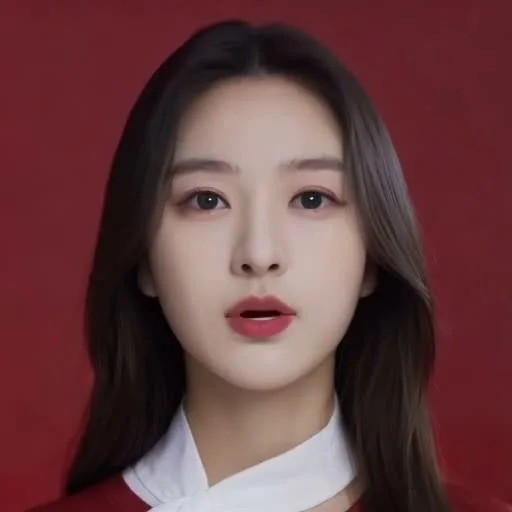
E-Commerce Product Presenter
A professional female presenter speaks directly to the camera explaining a product, natural blinks and subtle head motion, warm studio lighting, steady medium shot
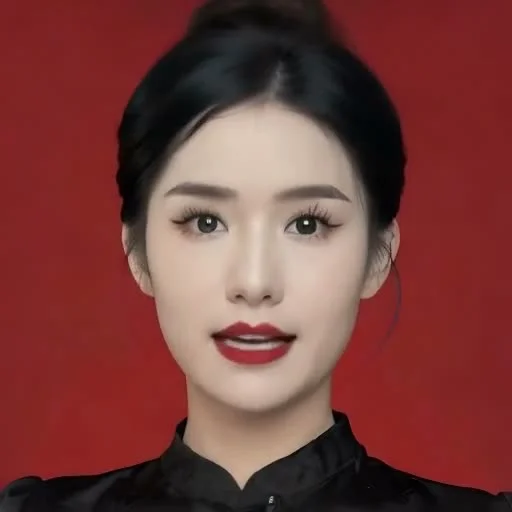
Brand Keynote & Event Host
An elegant host with a microphone introduces the brand keynote to the camera, confident smile, natural eye contact, lip-synced delivery
Why talking avatars work (and how a photo plus a voice clip becomes a video)
Most creators never publish video for one reason: the camera. Facing a lens, remembering a script and re-recording takes hours. Stock avatars fix the camera problem but look generic — and never sound like you.
A reference-based approach changes that. You show the model exactly whose face to animate (your portrait, a mascot, a presenter) and exactly what voice to use (a voice reference clip). The model renders the speaking motion on top of that locked identity instead of inventing a new person.
This is the standard workflow for e-commerce hosts, course narrators and multilingual channels: keep one portrait and swap the voice clip per language — the same presenter can speak ten languages without re-shooting.
How to make a talking avatar video in Sesshu
- STEP 011 / 4
Prepare one clean portrait
A front-facing photo with the whole head visible — a selfie, an AI portrait or a mascot design. One photo per presenter.
- STEP 022 / 4
Attach the photo as a reference
In the generator below (or at /reference-to-video), attach the portrait in the reference panel.
- STEP 033 / 4
Add the voice and write the script
Attach a short voice clip as a reference (Kling 4.0 treats it as the speaker's voice), and let the prompt describe the delivery — 'speaks warmly to the camera, natural blinks'.
- STEP 044 / 4
Generate and review the delivery
Generate a short take first. Check the mouth movement and pacing, adjust the script or lighting prompt, then batch the final scenes.
Talking avatar FAQ
Can a photo really become a talking video?
+
Yes. Attach the portrait as a reference and a voice clip as the speaker's voice; the model animates the mouth and head to match the delivery. Kling 4.0 supports this voice-reference workflow in Sesshu.
What audio can I use as the voice?
+
A short MP3/WAV clip works — narration, a line of dialogue or your own recording. Keep it within the model's audio limit (about 15 seconds per clip) and record in a quiet room for the cleanest result.
Does it work with cartoon characters or mascots?
+
Yes — the same reference workflow animates mascots, anime characters and product spokespersons. A clean front-facing design gives the most stable mouth movement.
Is it free to try?
+
Yes. Free credits via daily check-in (6–12/day, up to 60/week) cover several short test takes. No credit card required.
Are talking avatar videos watermark-free for commercial use?
+
Yes on any paid plan or credit pack — downloads are watermark-free and cleared for commercial use in ads, product explainers, and social channels. Free-credit downloads include a Sesshu watermark.
What languages and devices are supported?
+
Sesshu supports 32 interface languages, accepts spoken audio and prompts in your language, and runs directly in desktop and smartphone browsers.